
Accessibility Notation
With SPECCER, you can also display accessibility notation, like Accessibility Bluelines or A11y Annotation Kit:
Prior art: Jeremy Elder and Stephanie Hagadorn
INFO
For more technical documentation, see the relevant documentation under the API-section.
Usage
Via <script>-tag
<script src="https://unpkg.com/@phun-ky/speccer/dist/speccer.js"></script>
<div data-speccer="a11y tabstops|landmark|headings|autocomplete|shortcut">
  …
</div>
Programmatically
<div data-speccer="a11y tabstops|landmark|headings|autocomplete|shortcut">
  …
</div>import { a11y } from '@phun-ky/speccer';
a11y();Tab Stops
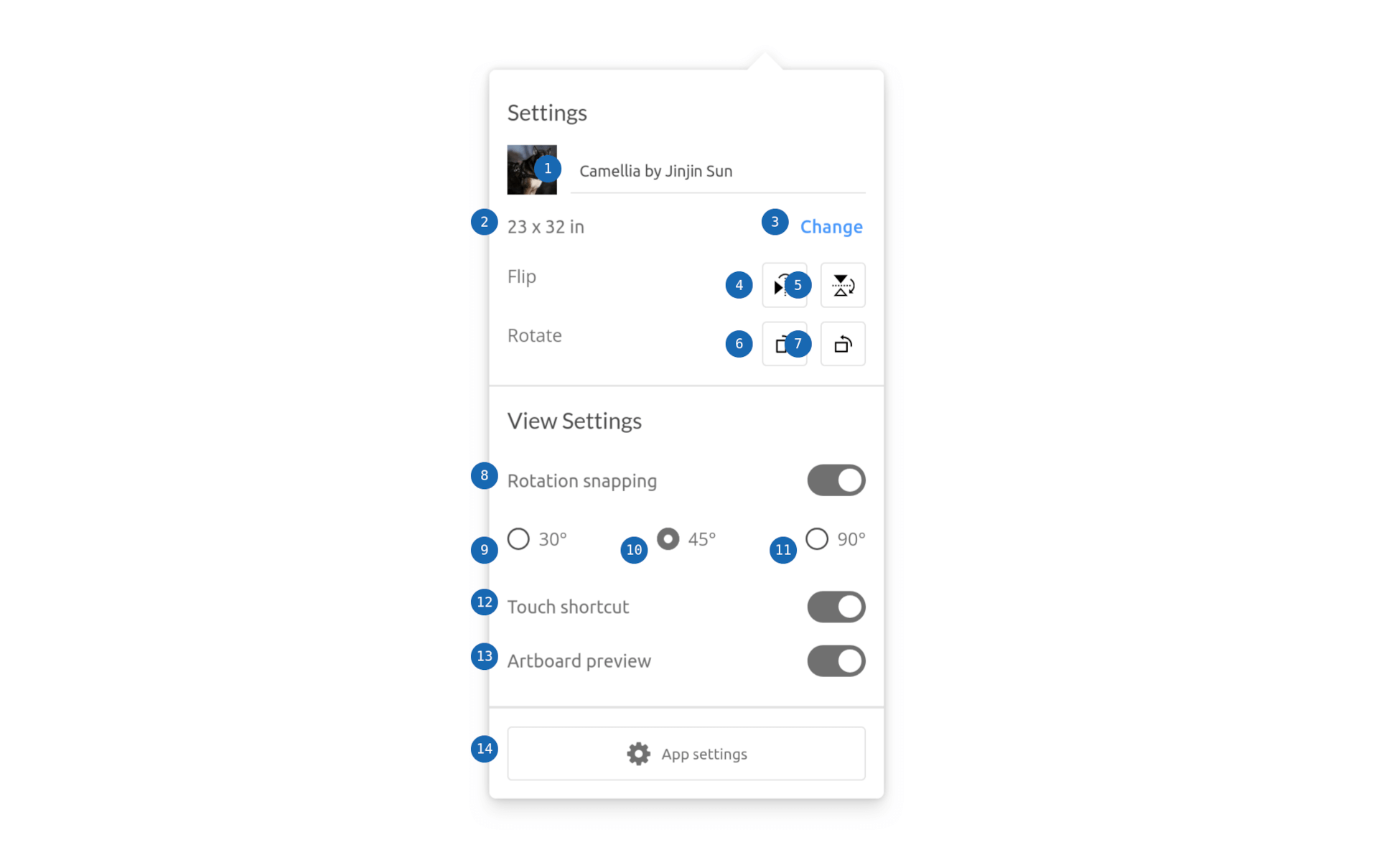
If you want to display tab stops, append data-speccer="a11y tabstops" as an attribute to the container you want to display the tab stops in.
Landmarks And Regions
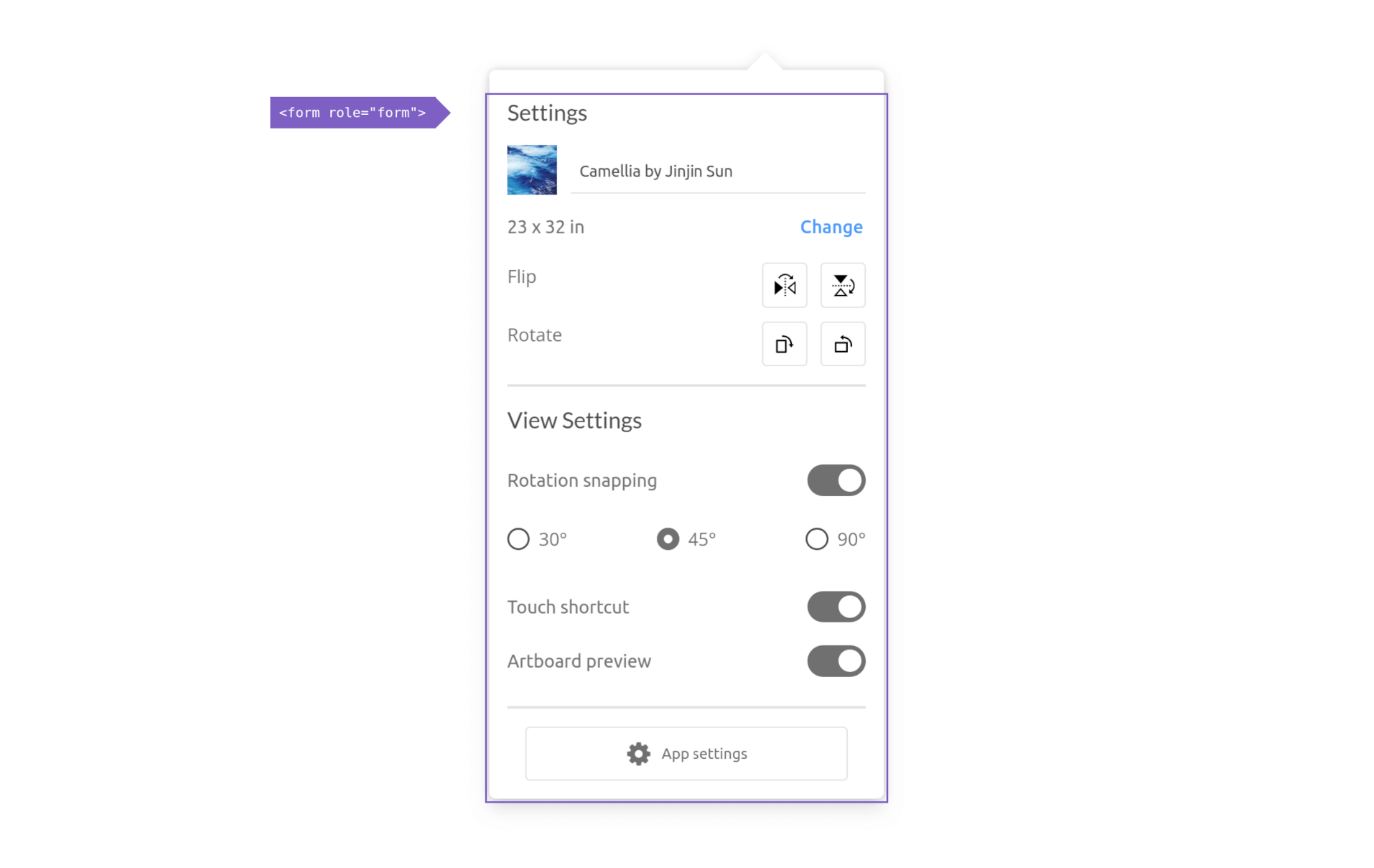
If you want to display landmarks and regions, append data-speccer="a11y landmark" as an attribute to the container you want to display the landmarks and regions in.
Headings
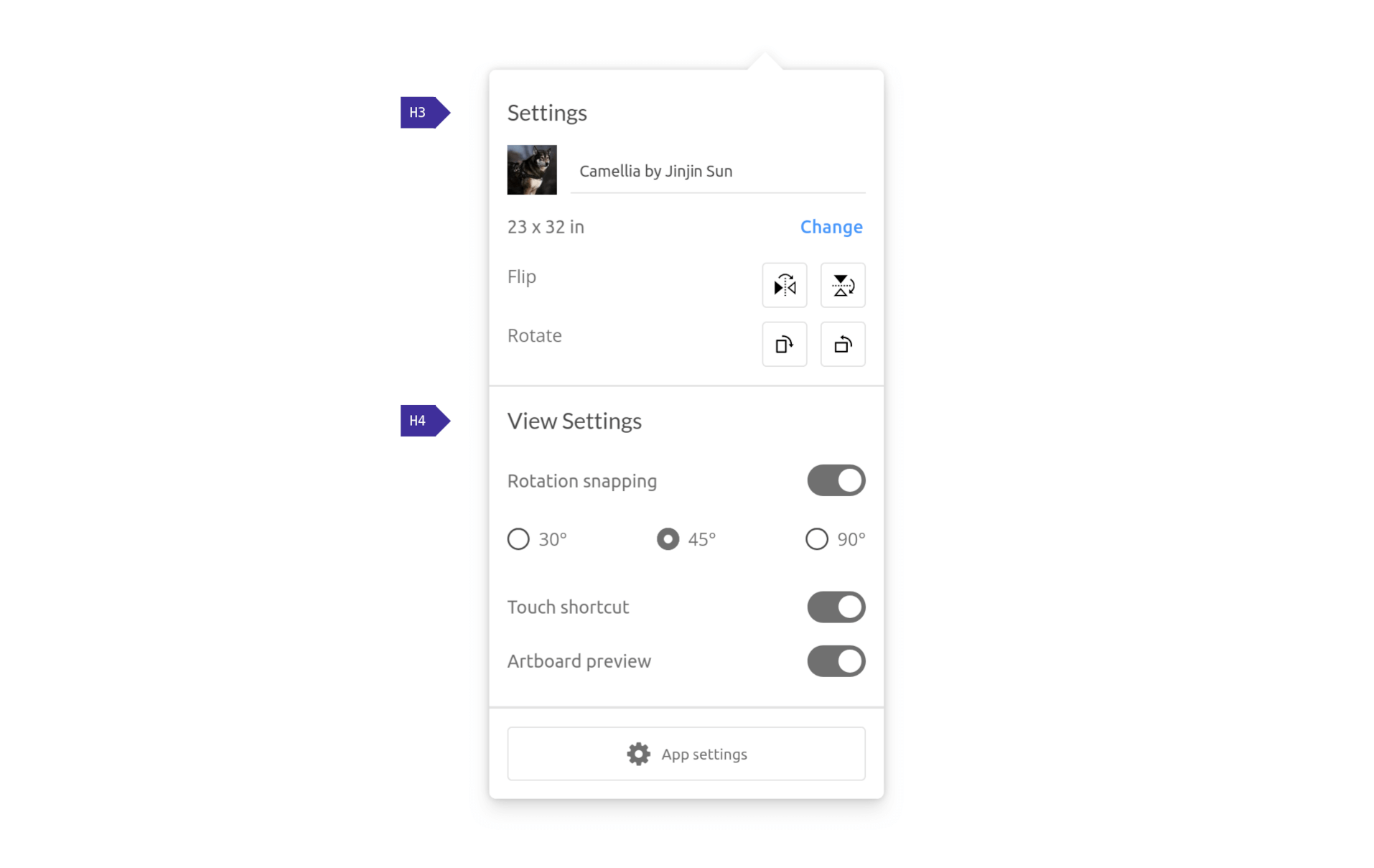
If you want to display headings, append data-speccer="a11y headings" as an attribute to the container you want to display the headings in.
Autocomplete
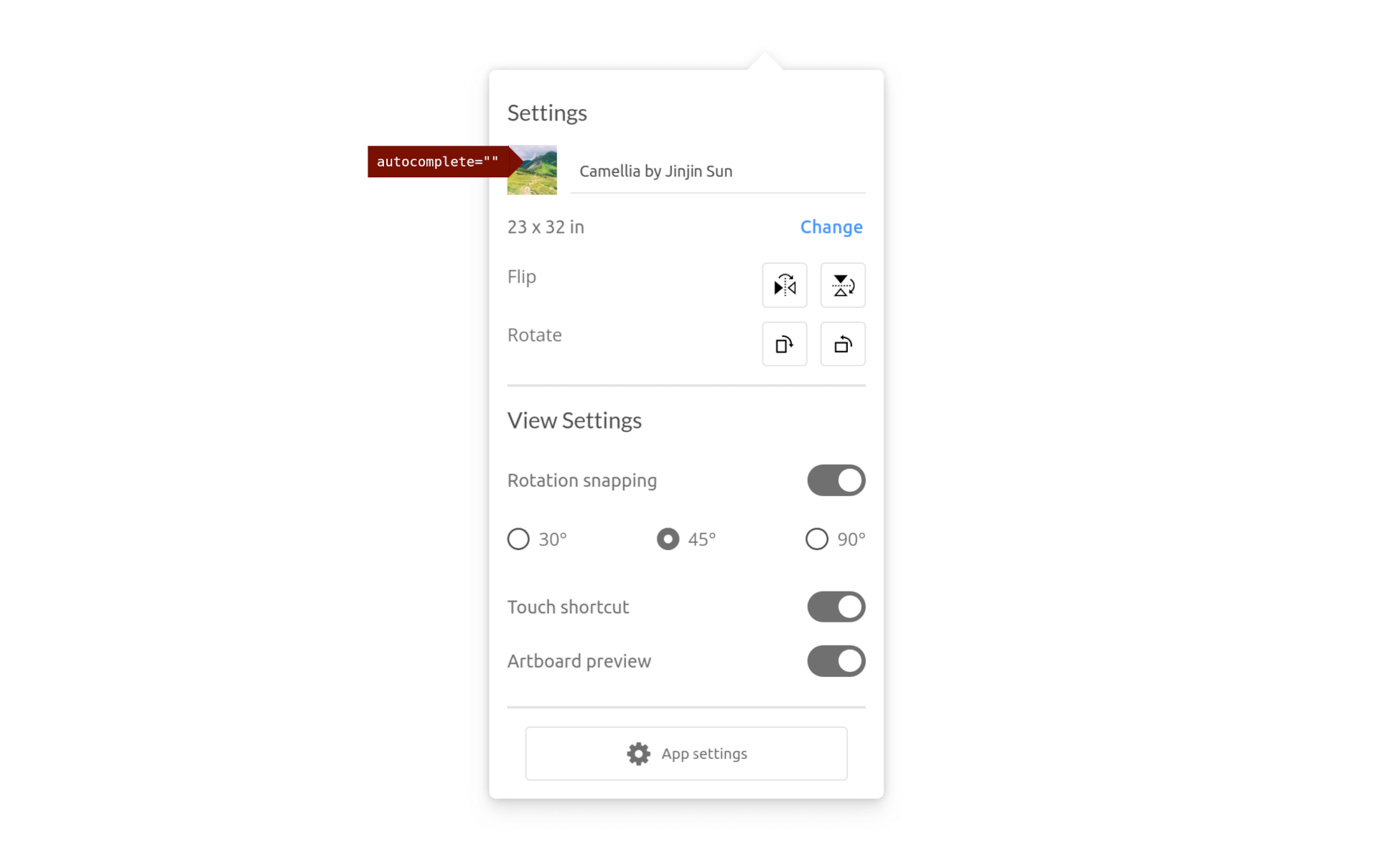
If you want to display autocomplete, append data-speccer="a11y autocomplete" as an attribute to the container you want to display the autocomplete in.
Keys And Shortcut
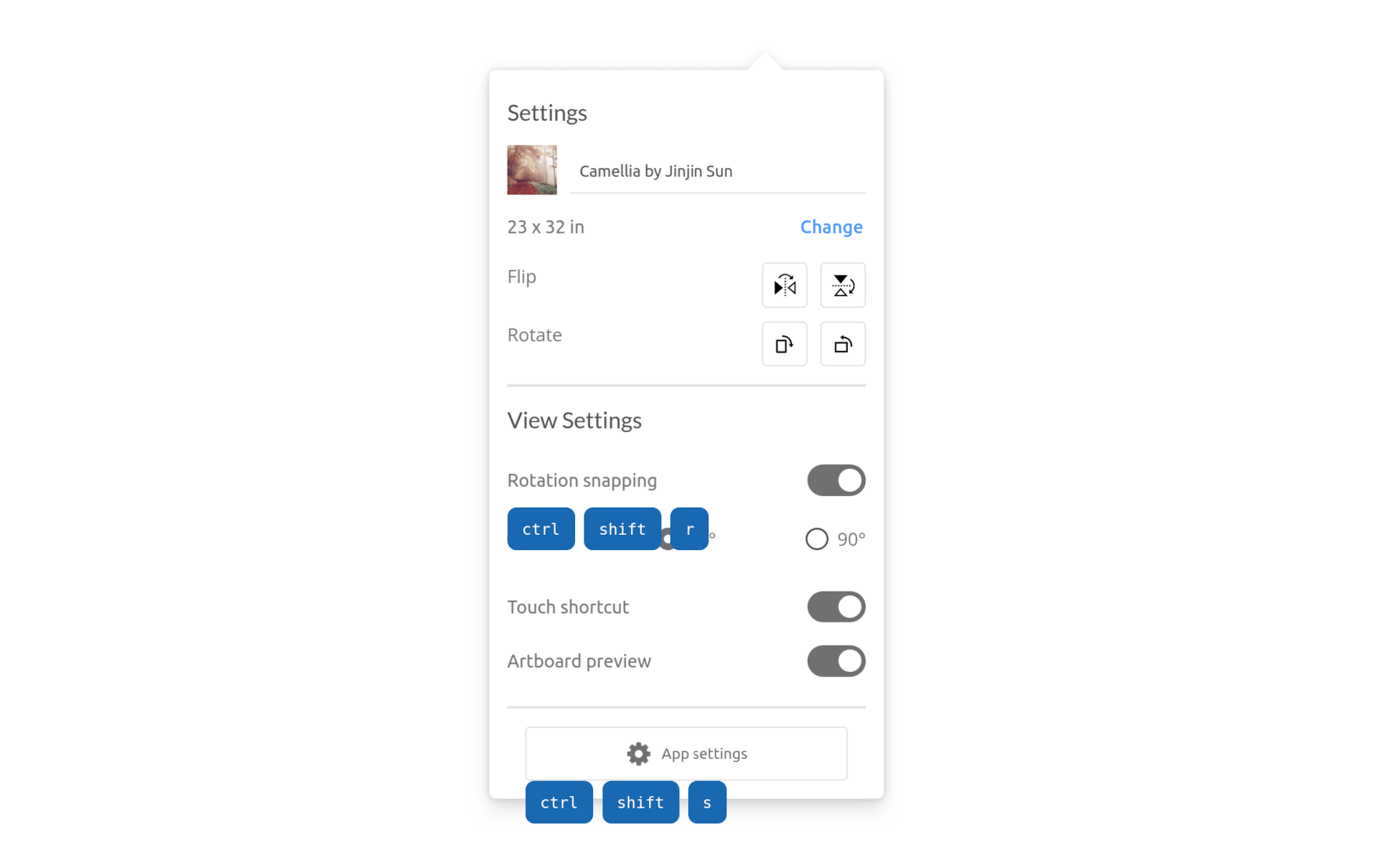
If you want to display the shortcut with keys used for elements, use data-speccer="a11y shortcut" and data-speccer-a11y-shortcut="<shortcut>" on the element that uses this shortcut:
<button
  type="button"
  data-speccer="a11y shortcut"
  data-speccer-a11y-shortcut="ctrl + s"
>
  Save
</button>