
Typography
INFO
For more technical documentation, see the relevant documentation under the API-section.
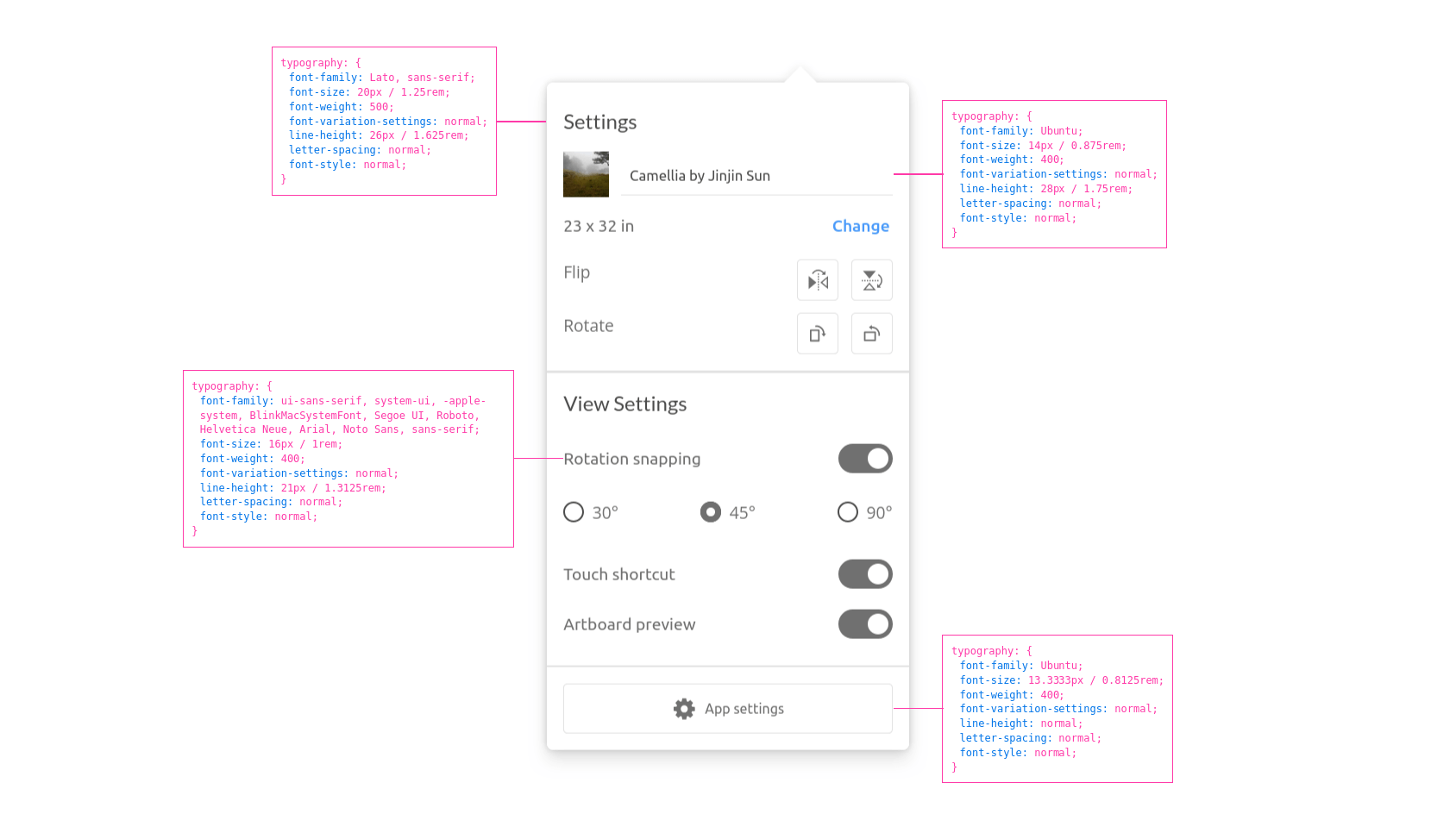
This feature allows you to display typography details.
Usage
Via <script>-tag
<script src="https://unpkg.com/@phun-ky/speccer/dist/speccer.js"></script>
<p data-speccer="typography [left|right|top|bottom]" class="…">Some text</p>
Programmatically
import { typography } from '@phun-ky/speccer';

const { create } = typography;
const element = document.querySelector('.my-element');
const options = {
  slug: 'typographyTest',
  position: 'left', // or top, right or bottom
  type: 'typography'
};
await create(element, options);
This will place a box to display typography information. Default is left.
Feature options
For more control over the feature options, you can view the available settings in the reference section.
Important
getComputedStyles are used to get the computed values, so for example, a line-height set to 1.5 will be presented in pixels, like 96px if the font-size is set to 64px.
Syntax Highlighting For Typography
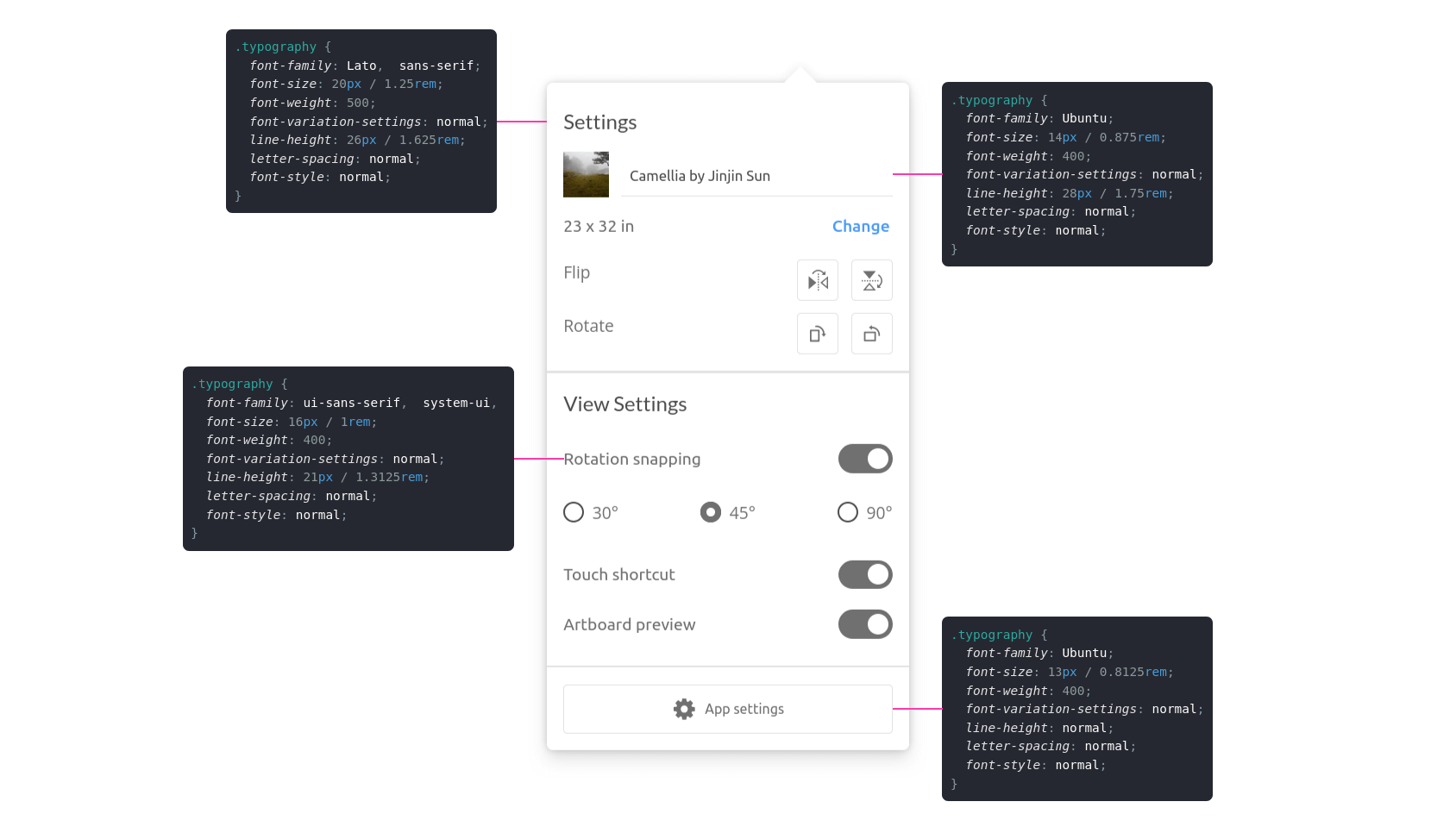
If you want to produce a box that uses pre and code tags with support for syntax highlighting (PrismJS compatible), add syntax to the data-speccer="typography" attribute.
Via <script>-tag
<script src="https://unpkg.com/@phun-ky/speccer/dist/speccer.js"></script>
<p data-speccer="typography syntax right" class="…">Some text</p>
Programmatically
import { typography } from '@phun-ky/speccer';

const { create } = typography;
const element = document.querySelector('.my-element');
const options = {
  slug: 'typographyTest',
  position: 'left', // or top, right or bottom
  type: 'typography',
  typography: {
    useSyntaxHighlighting: true
  }
};
await create(element, options);
Feature options
For more control over the feature options, you can view the available settings in the reference section.
You can then override the colors, based on these variables:
.ph-speccer.speccer.typography.syntax {
  --ph-speccer-color-code-color-1: #737373;
  --ph-speccer-color-code-color-2: #ff3aa8;
  --ph-speccer-color-code-color-3: #38383d;
  --ph-speccer-color-code-color-4: #ff3aa8;
  --ph-speccer-color-code-color-5: #ff3aa8;
  --ph-speccer-color-code-color-6: #0074e8;
  --ph-speccer-color-code-color-7: #000000;
  --ph-speccer-color-code-color-8: #cd0404;
}
Here is an example with these colors and overrides:
.ph-speccer.speccer.typography.syntax {
  color: #8c9b9b;
  background-color: #262831;
  border-radius: 0.375rem;
  font-size: 12px;
  line-height: 1.5;
  border: none;
  --ph-speccer-color-code-color-1: #859ba3;
  --ph-speccer-color-code-color-2: #c79500;
  --ph-speccer-color-code-color-3: #2caaa0;
  --ph-speccer-color-code-color-4: #469edd;
  --ph-speccer-color-code-color-5: #8c9b9b;
  --ph-speccer-color-code-color-6: #e4e4e7;
  --ph-speccer-color-code-color-7: #262831;
  --ph-speccer-color-code-color-8: #ff6666;
}